
STEP 1: HOW TO SUBSCRIBE
A. Visit the WWE Network main page:
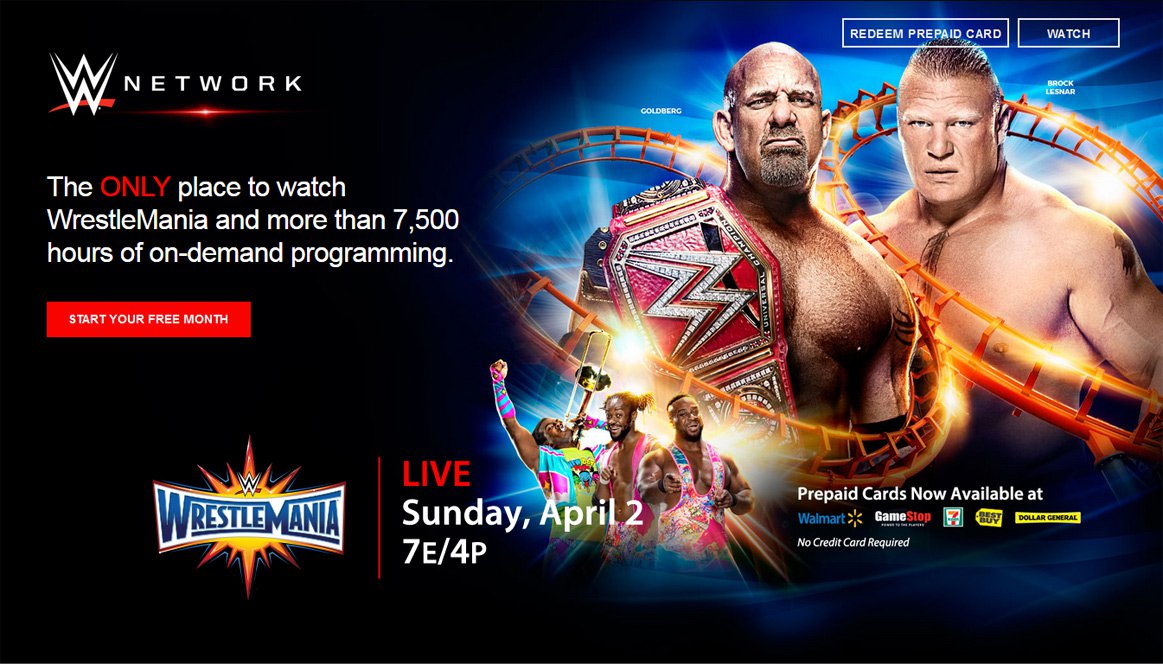
1. Access WWE's official homepage (/) and click the WWE Network button located on the top right section of the page, OR input wwenetwork.com in your browser.
2. Click START YOUR FREE MONTH
B. Log-in to the WWE Network subscription page
- You will require a WWE.com account when logging into WWE Network subscription page
- If you already have a WWE.com account, you will automatically be directed to C-1 below
If you have a WWE.com account but haven’t logged into WWE Network subscription page:
- Fill in the blanks on the left section of the page and click “LOGIN”
- You will be directed to C-1
**If you don't have a WWE.com account**
- Click “GET STARTED” located in the right section of the page
- You will be directed to C-2

**If you have a WWE.com account**
C-1. Fill in the billing information
- Fill in the blanks in “Enter billing information” using the reference below
- If you don’t have any issues with “Term of Use” and “Privacy Policy” (English only), click “CONTINUE.” You will be directed to the payment method section.

**If you don't have a WWE.com account**
C-2. Fill in the billing information and create an account
- Fill in the blanks in “Enter billing information” and “Create your account” using the reference below
- If you don’t have any issues with “Term of Use” and “Privacy Policy” (English only), click “CONTINUE.” You will be directed to payment method section.

D. Select Payment method
- If you click “CONTINUE” from procedure C, you will be able to choose “SELECT YOUR PAYMENT METHOD” from the lower page section
- Choose your preferred payment method from PayPal, Credit/Debit Card and fill in the blanks using the reference below
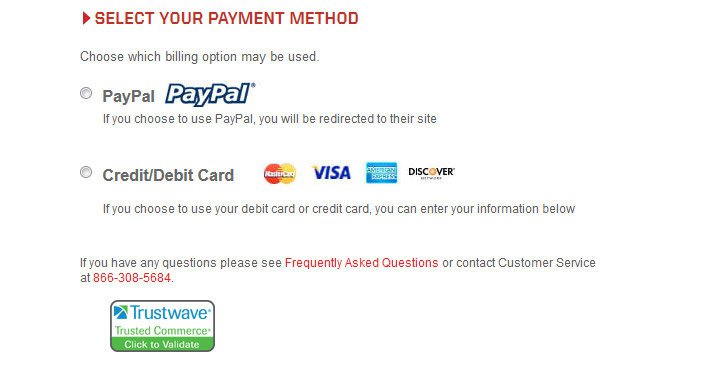

- Once you select the payment method, the page will extend and you will be able to fill in your credit card info
- Fill in the blanks and click “SUBMIT”

- After you choose PayPal as your preferred payment method, you will be automatically directed to the PayPal page
- Please process as directed by PayPal
STEP 2: HOW TO WATCH

STEP 3: Basic Navigation
How to watch content on WWE Network:
- Access WWE's official homepage (/)
- Click “Sign in” from menu bar, and log-in as necessary
- WWE Network TOP page will open, and you can start watching your choice of WWE content on WWE Network
Finding your favorite WWE contents:
- There are four content categories – "HOME," "SHOWS," "SCHEDULE" and "SEARCH."

Under the category “SHOWS,” there are 5 types of programs – PPV, In-Ring, Originals, Collections and Vault
「PPV」・・・Find archives to the latest PPV content of WWE, including those from WCW and ECW
「In-Ring」・・・In-ring programs include NXT, This Week, WWE Superstars and much more
[Collections] ・・・Easily find the very best WWE Network has to offer in one location
「Originals」・・・Various out-of-the ring programs, including reality shows and interviews
「Vault」・・・WWE proudly presents various archives that are truly treasure-like

Under the tab “SCHEDULE,” you can view the Network broadcast schedule for the coming two weeks. By clicking “Watch Now,” you can view the program right away, or you can also add the program to the reminder list and view it later. You can choose the date up to two weeks from today and check the broadcast schedule.

From the tab “SEARCH,” you can search for programs using any key words such as your favorite show or Superstar.

Basic navigation:
- Live・・・Click on this button if you want to view PPV or NXT programs live
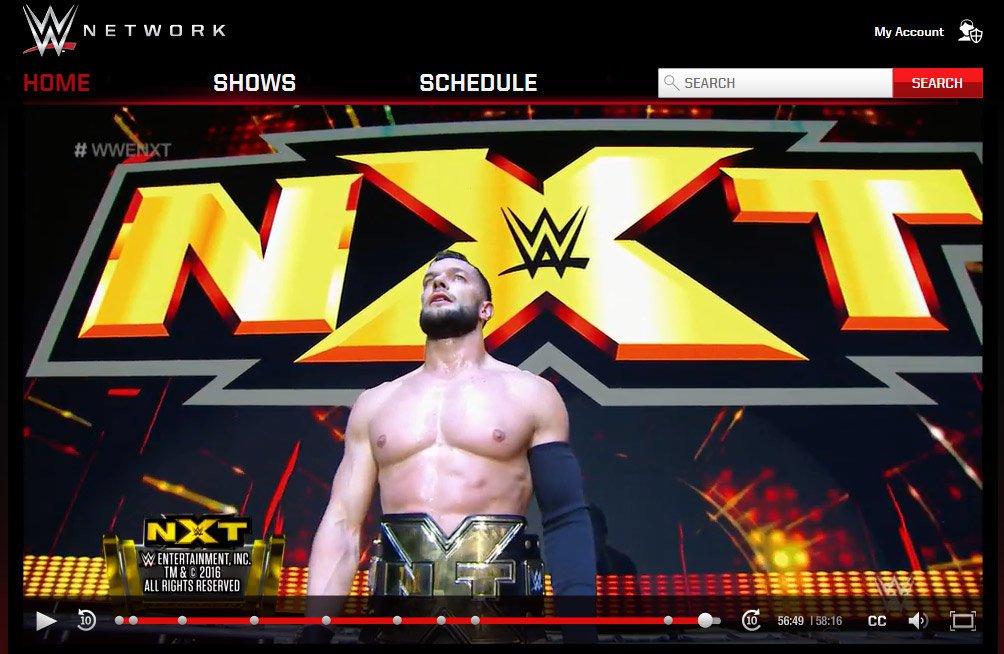
- VOD・・・Even when viewing the program live, you can always rewind the program by clicking on the 10-second rewind button (red). Plus, you can scroll the bar (green) to forward/rewind the program. If you want to go back to a live broadcast, click the “Live” icon (yellow). If you want to pause, click on the pause button (white).
- By clicking on “CC” icon (blue), English subtitling will appear on your screen. By clicking it again, subtitling will turn off.
FAQ
Click here for more help with WWE Network.


